Guide
Voice-activated teleprompter app for iPhone that follows your voice
A script that moves when you talk, waits when you stop, and floats over the camera app you already use.
Most teleprompter apps scroll at a speed you pick. Talk a little faster and you’re reading off the bottom of the screen. Stop to breathe or think, and the text carries on without you. So you spend the time between takes nudging a speed slider instead of talking to the camera.
A voice-activated teleprompter listens instead. It follows the words you say, keeps up when you speed up, and waits when you pause.
This guide explains what “voice-activated” should mean, then walks you through setting one up on iPhone and keeping it on track during a real take. The steps use Hover Prompt, a teleprompter for iPhone, iPad and Mac. You can try it free: the built-in demo script follows your voice word by word, and a one-time unlock lets you use your own scripts.
What “voice-activated” should mean
Apps use “voice-activated” for three quite different things, so check which one you’re getting before you pay.
Fixed-speed scrolling. The text moves at a speed you set, often called “auto-scroll.” It doesn’t listen at all. It works if you speak at a steady pace and never pause, which almost nobody does.
Sound-triggered scrolling. The text moves while the microphone hears sound and stops when it doesn’t. That beats a timer, but the app doesn’t know which word you’re on. A cough or a closing door can move it, and it still drifts if your pace changes.
Word-by-word following. The app recognizes the words you say and matches them to the script. The current word lights up, the text keeps pace with you, and it waits when you stop. This is what most people are looking for, and it’s how Hover Prompt works.
You see the difference the moment you go off-script. With fixed speed, the text keeps moving while you hunt for your place. With word-by-word following, the highlight waits and picks up again as soon as you’re back on the words.
Set it up on your iPhone
Hover Prompt uses your iPhone’s built-in speech recognition, so there’s one system setting to check before you start. It runs on iOS 17 or later (iPadOS 17 and macOS 13 on the other devices), and one App Store purchase covers all three.
- Turn on Dictation. Go to Settings > General > Keyboard and switch on Dictation. Choose a language that supports on-device recognition, so your speech is processed on the iPhone itself.
- Play the demo script. Open Hover Prompt, tap Start Hover Prompt, then tap play. The first time, allow Microphone and Speech Recognition access.
- Say a sentence, then stop. Each word should light up as you say it, and the script should wait when you go quiet. If it does, voice following is working.
- Add your own script. Paste it, type it, or import a .txt, .md or .rtf file. No account needed.
- Make it readable from where you’ll stand. In Settings, change the highlight color, font, size and spacing. Larger text and a little extra line spacing matter more than the font. Pick a highlight color that stands out against your room.
Write a script that’s easy to follow
The closer your script is to how you actually talk, the easier it is for you to read and for the app to follow.
- Plan about 130 to 150 words per minute on camera. A two-minute video is roughly 300 words.
- Keep sentences short. One idea per sentence gives you natural places to breathe.
- Leave a blank line between thoughts. It’s a visual cue to pause and look at the lens.
- Write numbers and symbols as you’ll say them. “Fifteen percent,” not “15%.” “Twenty twenty-six,” not “2026.” The words on screen should match the words coming out of your mouth.
- Spell unusual names the way they sound if the highlight trips over them in a test read.
Float the script over your camera app
A script only helps if it sits where you’re looking. Hover Prompt doesn’t record video. You film in Camera, or whichever app you already use, and the script floats on top in a Picture-in-Picture window you can drag anywhere.
- Press play and check that the highlight is moving.
- Swipe up to leave Hover Prompt. The floating window stays on screen. (If the script is paused when you leave, the window won’t appear, so press play first.)
- Open your camera app and drag the window right beside the lens, so your eyes stay close to the camera while you read.
The floating window has no buttons. Tapping it takes you back to Hover Prompt rather than playing or pausing the script. You won’t miss them, because your voice is doing the moving. A green meter on the window shows when the microphone can hear you.
On iPhone you can also tuck the script into the Dynamic Island when you want it out of the way. For reading a full script, stick with the larger window by the lens; a single line in the island is easy to lose mid-sentence.
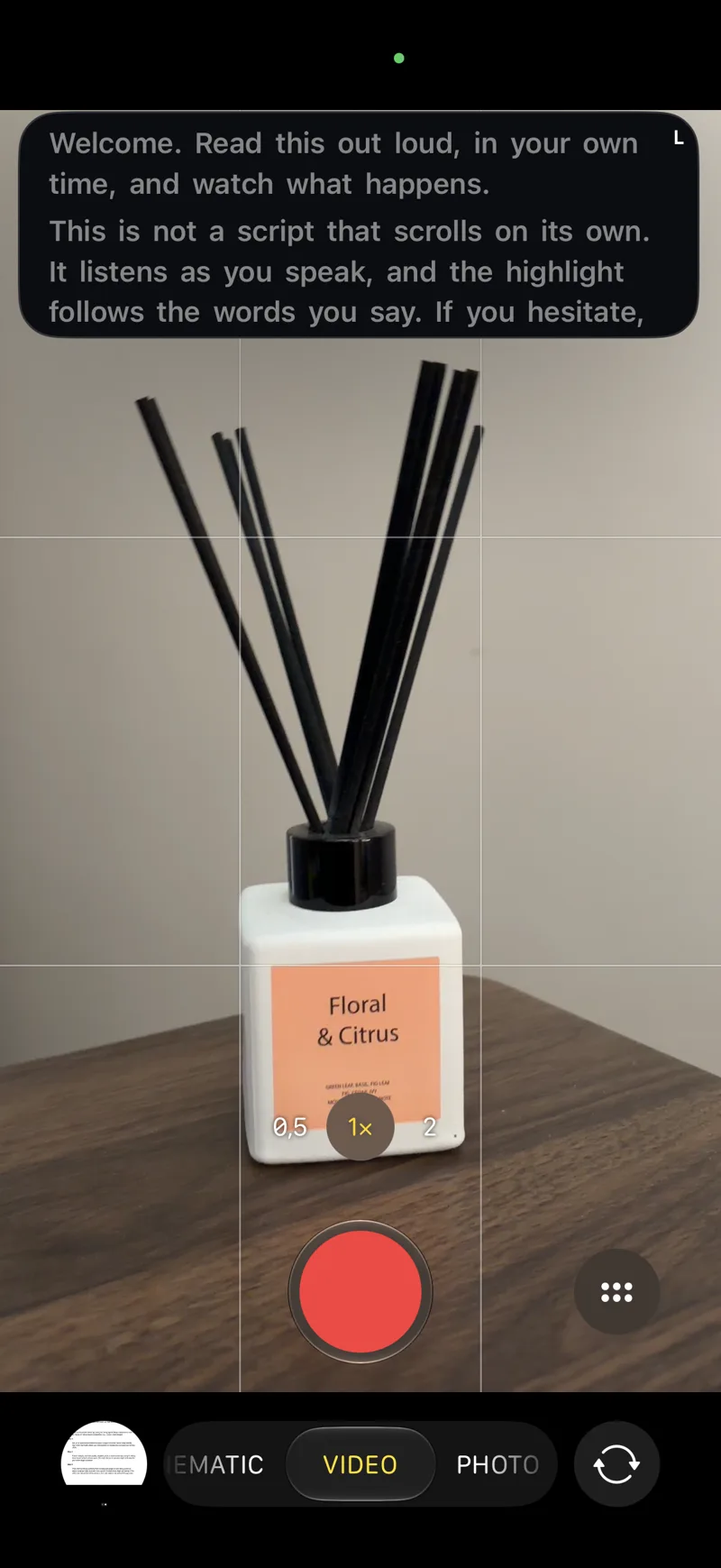
For distance, framing and lighting, see How to use a teleprompter on iPhone while recording video.
Control the script with your voice
Following your words handles the pace. Voice commands handle the jumps. On iPhone and iPad, say “Hover,” pause for a beat, then say:
- “Pause” to stop the script.
- “Resume” to carry on.
- “Next sentence” to skip ahead.
- “Go to start” to go back to the top for another take.
The short pause after “Hover” is what tells the app you’re giving a command rather than reading your script. If “Hover” appears in your script, or sounds like something you say often, change the trigger word in Settings.
Commands are most useful when you’re holding the phone, using your hands to show something, or standing too far away to reach the screen. You’ll cut them out in the edit anyway.
Give the microphone a clean signal
A voice-following teleprompter is only as good as what the microphone hears. Every other sound in the room competes with your voice.
Quiet the room. Close the door, turn off the fan, and pause any music or TV. A rug or curtain helps if the room echoes. In a quiet room, the iPhone’s built-in microphone is all you need. A headset helps when you can’t get the room quiet, and there’s nothing to set up in Hover Prompt: if your iPhone is using the headset mic, so is the app.
Talk normally. You don’t need to slow down or over-pronounce anything for the app to keep up, and a natural pace looks better on camera anyway.
Mind your grip. A hand over the bottom of the phone can muffle the mic and stall the highlight.
Test before each take. Say one sentence and stop. The green meter should move while you talk and settle when you’re quiet. If it jumps while you’re silent, find the noise before you hit record.
When the highlight stops following you
The highlight doesn’t move at all. Check the green meter first. Then make sure Microphone and Speech Recognition are allowed for Hover Prompt (Settings > Privacy & Security), Dictation is on, and the on-device speech model has finished downloading.
It worked in the app, but stops once Camera starts recording. Go to Settings > Camera and turn on Allow Audio Playback if you see the option. Without it, the recording can take over the microphone and leave Hover Prompt with nothing to listen to.
It loses you on certain words. Names, brand words and numbers are the usual culprits. Spell tricky names the way they sound and write numbers as words, then read that line again.
You went off-script. The highlight waits and picks up when you come back to the words. To start over, say “Hover,” then “go to start.”
A voice command didn’t work. Leave a clear pause after “Hover” before the command. If the trigger word clashes with your script, change it in Settings.
Still stuck? The support page walks through the permission steps in order, and the privacy policy covers exactly what the app does with the microphone.
If you’d rather not use voice following
Voice following isn’t the only way to pace a script. Depending on how you film, one of these might suit you better.
Fixed-speed scrolling. Fine for a short script read at a steady pace. Set it slightly slower than feels natural, and expect to restart the take if you pause.
Someone else running the scroll. This is how TV prompters work, and it’s very effective. Most people filming at home just don’t have a spare operator.
Recording apps with a built-in prompter. These show scrolling text inside their own camera screen. That’s a fair choice if you’re happy to film in that app. A floating window lets you keep your usual camera app and editing workflow.
Bullet points on a card. Good for three or four talking points if you’d rather speak freely. Not great for a full script, because your eyes travel further from the lens.
If you want the script to keep pace with what you actually say, rather than a timer or a sound level, that’s what Hover Prompt is built for.
Questions
Is there a teleprompter app for iPhone that follows your voice?
Yes. Hover Prompt highlights each word as you say it, keeps pace when you speed up or slow down, and waits when you pause. It works on iPhone, iPad and Mac, and you can try it free with the built-in demo script.
Does a voice-activated teleprompter record my voice?
Hover Prompt doesn't. Your speech is recognized on your device to move the highlight and is never recorded. Your scripts stay on your device too.
Can I use a voice-activated teleprompter with the Camera app?
Yes. Play your script, swipe up while it's playing, and the script floats over Camera or whichever app you film with. Hover Prompt doesn't record video; your camera app does.
What's the difference between voice-activated and auto-scroll?
Auto-scroll moves the text at a speed you set, whether you're talking or not. A voice-following prompter tracks the words you actually say, so it keeps pace with you and stops when you stop.
Can I control it hands-free?
Yes, on iPhone and iPad. Say "Hover," pause for a beat, then say "pause," "resume," "next sentence" or "go to start." You can change the trigger word in Settings.