Guide
How to use a teleprompter on iPhone while recording video
Keep filming in the Camera app, put your script right beside the lens, and let the highlight follow your voice.
Filming yourself on an iPhone is easy until you have to remember what to say. Notes in your other hand drag your eyes off the lens. A page taped to the wall is too far from the camera, so you end up looking past the person you’re talking to. The fix is to keep the words right next to the lens, inside the app you already film with.
This guide covers the whole setup: how long to write, where to break your lines, how far to stand, and the one rehearsal worth doing before you hit record. The steps use Hover Prompt, a teleprompter app for iPhone, iPad and Mac. One App Store purchase covers all three. It runs on iOS 17, iPadOS 17 and macOS 13 or later.
You can try Hover Prompt for free. The built-in demo script, “Welcome to Hover Prompt,” highlights each word as you say it, slows down when you do, and waits when you pause. Using your own scripts takes a one-time unlock. Your scripts stay on your device, and your voice is never recorded.
Write a script you can say out loud
Before you open the camera, read your draft out loud. If you wouldn’t say a sentence that way to a friend, rewrite it. Stiff writing is easy to miss on the page and impossible to miss once you hear yourself say it.
For one minute on camera, aim for 130 to 150 words. Two minutes is roughly 260 to 300, with room to pause. Shorter is easier, because every retake means setting up the shot again.
Stick to one idea per sentence. Break lines where you’d take a breath, not where the screen runs out of room. Six to ten words per line reads comfortably in a small window, and a blank line between thoughts lets you see the next point coming.
Write numbers the way you’ll say them: “fifteen percent” is easier to read aloud than “15%.” If a name is tricky, spell it the way it sounds so you get it right on the take. Then read the whole script once more without recording. Any line that leaves you short of breath is too long, and any phrase you trip over twice needs rewriting.
To get your script in, paste it, type it, or import a .txt, .md or .rtf file on iPhone or iPad. You don’t need an account. In Settings you can change the highlight color, font, size and spacing. In a small window, bigger text and a bit more line spacing matter more than which font you choose. Pick a highlight color that stands out against your room, and change it if it blends into the background.
Put the script next to the lens
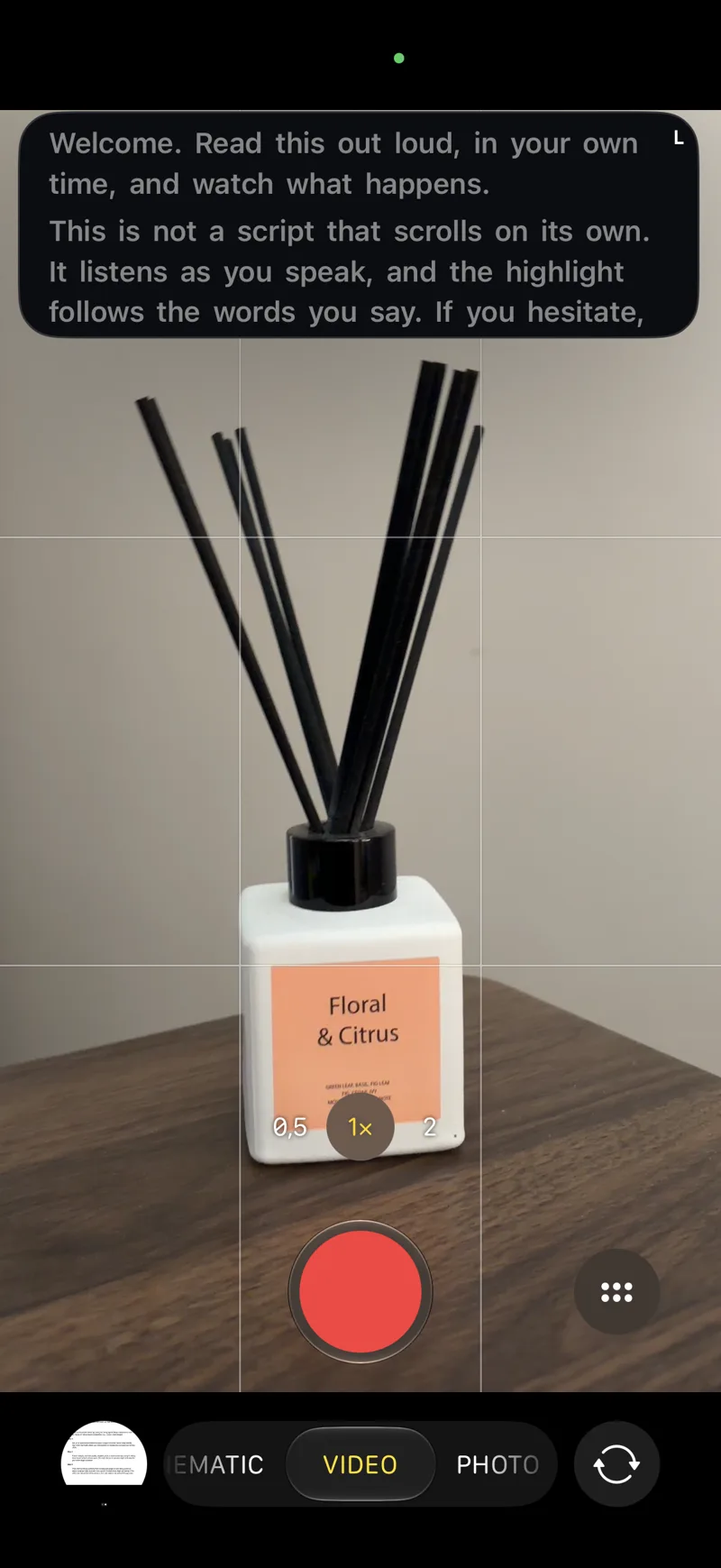
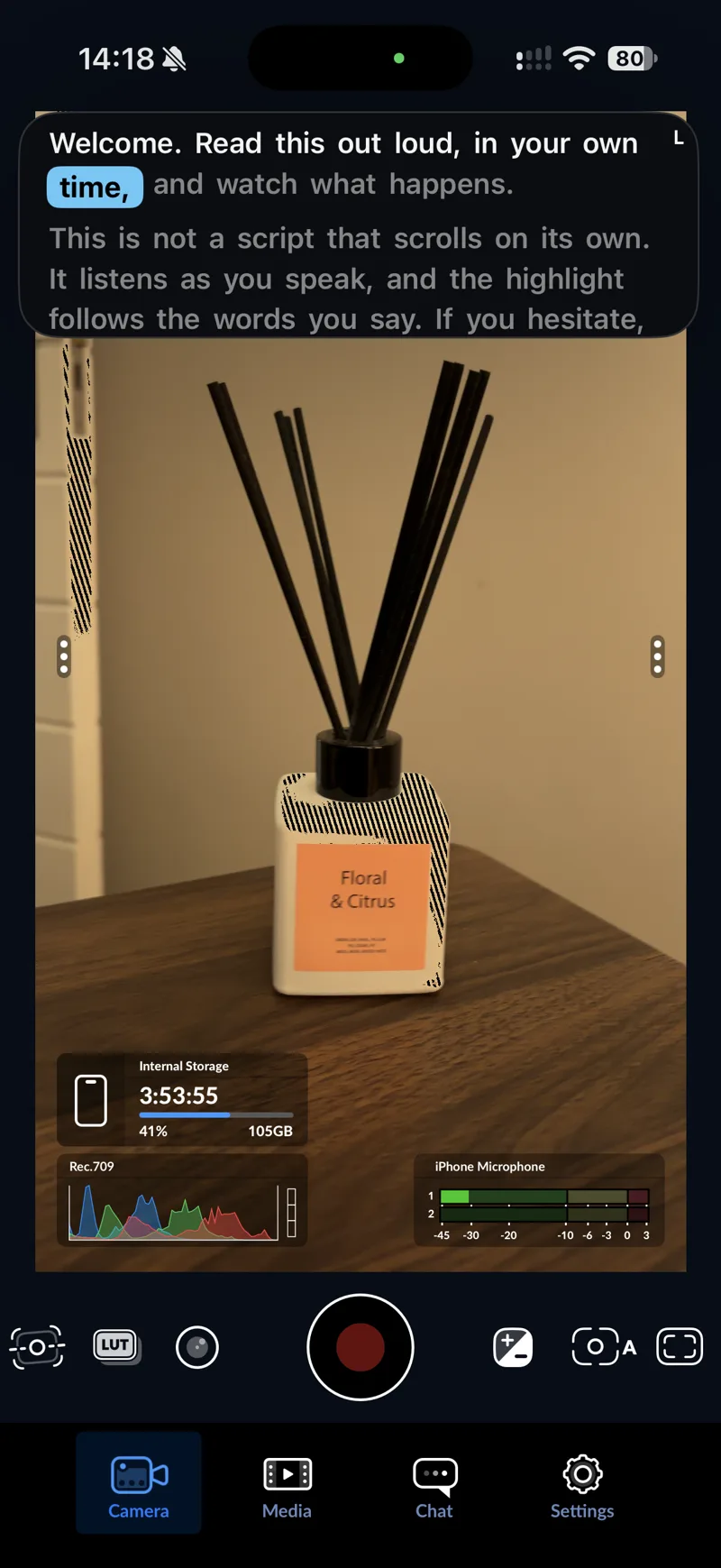
Hover Prompt doesn’t record video. You stay in Camera, or whichever app you already film with, and your script floats on top in a Picture-in-Picture window you can drag anywhere.
The first time you play a script, allow Microphone and Speech Recognition access. Then turn on Dictation (Settings > General > Keyboard) and pick a language that supports on-device speech recognition. Your speech is processed on the iPhone itself, and the highlight follows the word you’re saying.
- Open Hover Prompt and choose a script. Start with the demo to see the highlight in action, or paste, type or import your own.
- Tap Start Hover Prompt, then tap play. Say a sentence. The current word should light up, and the script should wait when you stop.
- Swipe up while it’s playing. The floating window stays on screen. If the script is paused when you leave, the window won’t appear, so press play first, then swipe.
- Open Camera and drag the window beside the lens. On iPhone you can also tuck it into the Dynamic Island when you want it out of the way, but for reading, keep the larger window by the lens. A single line in the island is easy to lose mid-sentence.
- Record as usual. Start and stop recording in Camera or your usual app. Hover Prompt only handles the script.
The floating window has no buttons. Tapping it takes you back to Hover Prompt; it won’t play, pause or move the script. To control the script hands-free, say “Hover,” pause for a beat, then say “pause,” “resume,” “next sentence” or “go to start.” Voice commands work on iPhone and iPad, and you can change the trigger word in Settings. They’re handy when you’re holding the phone or using your hands to show something.
A green meter on the window shows when the microphone can hear you. If it stays still while you talk, the highlight won’t move either, so sort that out before your real take.
Frame the shot and set your distance
Put the lens at eye level. A phone lying flat on a desk films up your chin and leaves the script nowhere good to sit. Prop it on a stack of books, a clamp or a small stand.
Start about an arm’s length away, roughly 50 to 70 centimeters. Any closer and the lens exaggerates your nose and leaves no room for the window. Any further and the words get hard to read unless you increase the text size.
Leave a little space above your head and keep your eyes in the top third of the frame. Drag the script just beside the lens or slightly below it. It shouldn’t cover your eyes or mouth on screen; if it does, nudge it toward the corner nearest the lens.
Record a few seconds and play them back before the full take. Check the actual video file, not a screen recording: the floating window can show up in a screen recording, but Camera captures only what the lens sees. Light your face from the front or from a window to one side, never from a bright window behind you.
Keep the room quiet
Hover Prompt follows your voice, so every other sound competes with it. A fan, a TV or traffic through an open window all give the microphone something to hear that isn’t your script. Close the door and pause any music. A rug or curtain helps if the room echoes.
A headset is optional and mainly useful when you can’t get the room quiet. There’s nothing to set up in Hover Prompt: if your iPhone already uses the headset as its microphone, that’s enough. In a quiet room, the phone’s built-in mic works well and keeps cables out of the shot.
Say one sentence, stop, and watch the green meter. It should move while you talk and settle when you stop. If it jumps around while you’re silent, find the noise first. And watch your grip: a hand over the bottom of the phone can muffle the mic and stall the highlight.
Rehearse once before you record
Read the demo script aloud once to check that the highlight keeps up and the text is big enough from where you’re standing. Then read your own script once without recording, and fix any line you stumble on.
On the real take, picture one person and talk to the lens. Pause at the blank lines. If you need a breath, take it; the highlight will wait.
If you lose your place, say “Hover,” then “go to start” or “next sentence.” Or stop recording, leave the window where it is, and start again. A second take is completely normal. Rehearsing just means you get one clean take instead of stitching half-takes together later.
Other ways to read a script on camera
A timed-scroll teleprompter moves the text at a speed you set. That works if you speak at a steady pace and rarely pause, but the text keeps moving when you stop, so if you look away you have to hunt for your place. If that’s what you use now, set it slightly slower than feels natural and keep the script short. This guide uses Hover Prompt because the highlight follows what you actually say, not a timer.
Paper still works for a few bullet points. Write large and put the card beside the lens. Your eyes travel further than they do with a window sitting right by the lens, and a full page means squinting or shuffling paper on camera. Fine for a short list; awkward for a full script.
Some recording apps have scrolling text built in. That’s a good option if you’re happy to film in that app. A floating window lets you stay in Camera, or whichever app you prefer, and edit in your usual tools afterwards.
When the highlight doesn’t follow you
The window never appears. You probably swiped away while the script was paused. Press play, check that the highlight is moving, then swipe up.
The window is up, but the highlight doesn’t move. Check the green meter first. Then make sure Microphone and Speech Recognition are allowed for Hover Prompt (Settings > Privacy & Security), Dictation is on, and the on-device speech model has finished downloading. Hover Prompt checks again each time you come back to it.
The highlight stops once Camera starts recording. In Camera, turn on Allow Audio Playback if you see the option. Without it, the recording can take over the microphone and leave Hover Prompt with nothing to listen to.
You go off-script. The highlight waits and picks up again when you come back to the words. To jump back to the top, say “Hover,” then “go to start.”
Still stuck? The support page walks through the permission steps in order. For the full detail on privacy, see the privacy policy. The short version: your scripts stay on your device, and your voice is never recorded.
Questions
Can I use a teleprompter on iPhone while the Camera app is recording?
Yes. Play your script in Hover Prompt, swipe up while it's playing, then open Camera and drag the floating window next to the lens. Camera does the recording; Hover Prompt just shows the words.
Is Hover Prompt a teleprompter app for iPhone?
Yes, and for iPad and Mac too. One App Store purchase covers all three. It needs iOS 17, iPadOS 17 or macOS 13 or later.
Will the script show up in the video?
Not in a Camera recording, which captures only what the lens sees. The floating window can appear in a screen recording, so move it or check the playback if you're recording your screen.
What if I pause or lose my place?
The highlight waits while you pause and picks up when you start talking again. To jump around hands-free, say "Hover," then "next sentence" or "go to start."
Is my voice recorded?
No. Your speech is recognized on your device to move the highlight, and it's never recorded. Your scripts stay on your device too.